Users and Permissions
Invite users to your provider account to help you manage your services. Open Settings → Users & Permissions in the Control Center.
User list
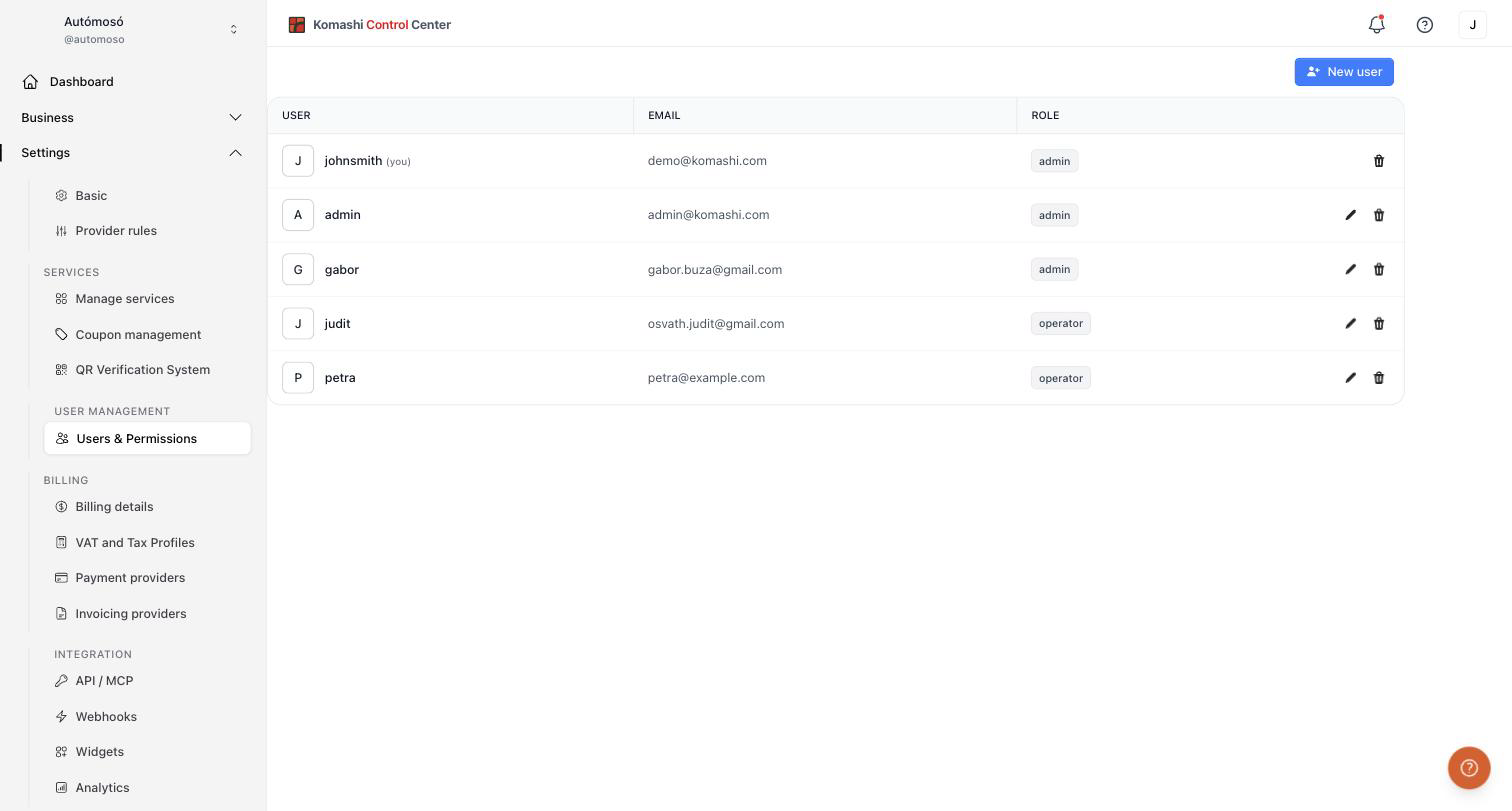
The table shows every user with their email and role. Your own account is marked (you). Use the pencil icon to change a role and the trash icon to remove a user.
Roles
- admin — Full access to settings, services, billing, and user management.
- operator — Day-to-day operations, for example verifying subscriptions and managing customers. Operators cannot change provider settings.
Invite a new user
- Click New user.
- Enter the user's Email address.
- Select a Role (admin or operator).
- Click Send invite.
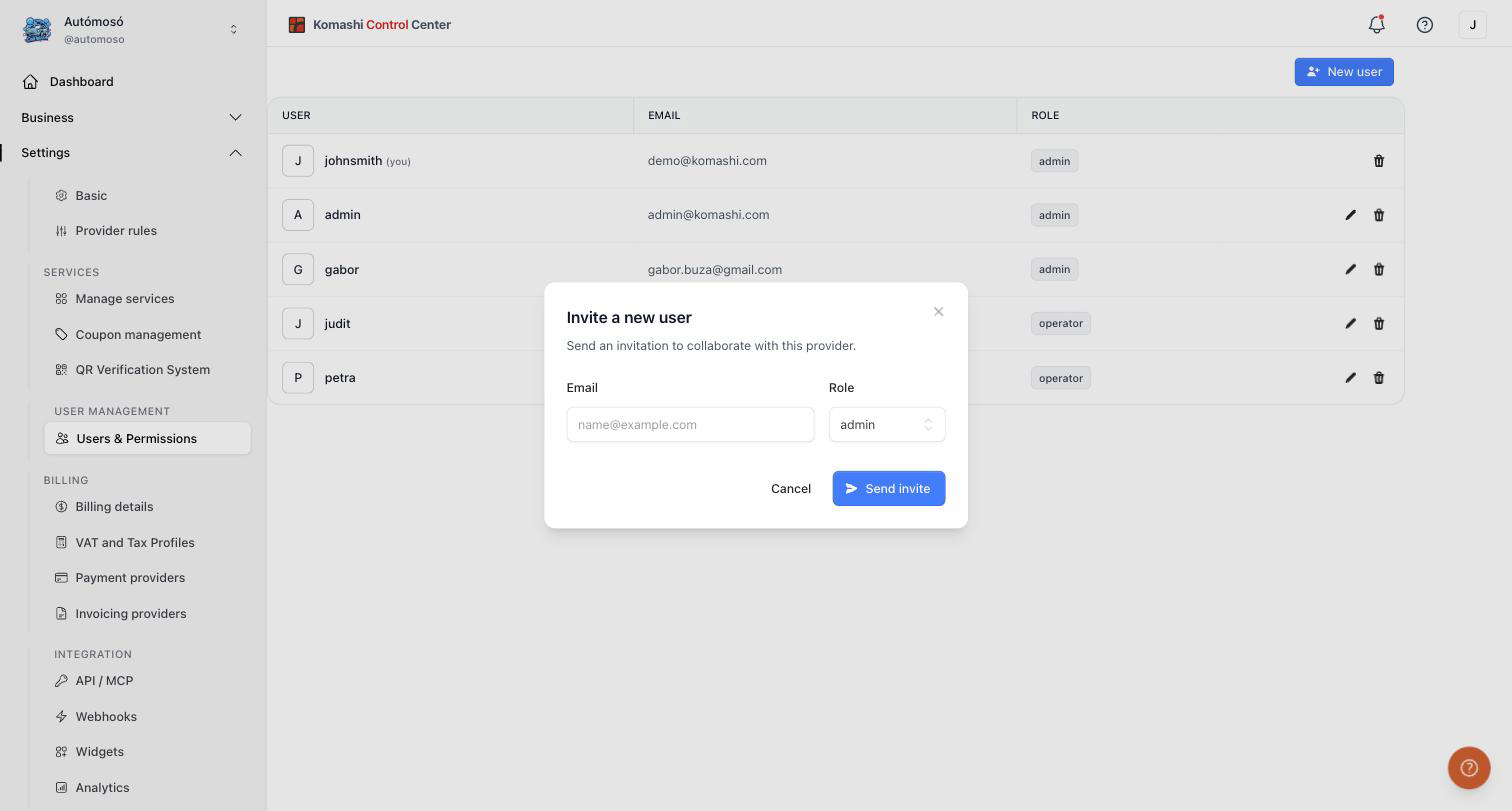
The user receives an invitation to collaborate with this provider.
Change a user's role
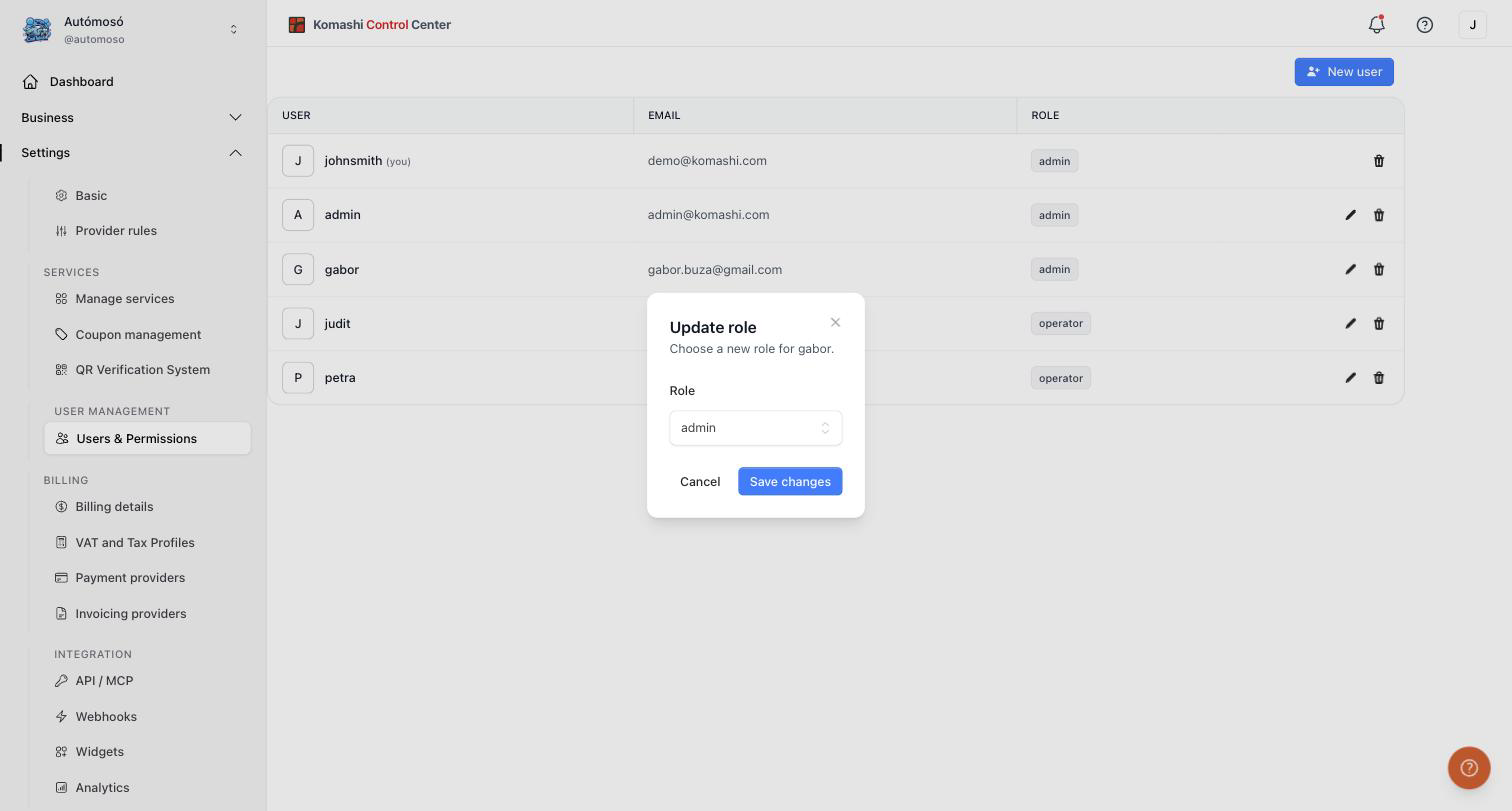
- Click the pencil icon next to the user.
- Choose the new role in the Update role dialog.
- Click Save changes.
Remove a user
Click the trash icon next to the user and confirm. The user loses access to this provider immediately.